
Do you want to see how much battery your Bluetooth devices have left? Bluetooth devices like headphones, mice, and keyboards can show their battery level right on your Windows 11 computer. This guide will show you how to check that easily.
Why Check Your Bluetooth Device Battery?
Bluetooth lets your computer connect wirelessly to other devices nearby. When your Bluetooth device is connected, it can send its battery level to your PC. This way, you can see how much charge is left without guessing. You won’t get caught with a dead headset or mouse in the middle of work.
Some Bluetooth devices have their own apps to check the battery. But you don’t always need them. Windows 11 can show you battery info right inside its Settings app for many devices.
How to Check Your Bluetooth Device Battery Level in Windows 11
Step 1: Open Windows Settings
Press Windows key + I on your keyboard.
Or click the Start button (looks like the Windows logo), then choose Settings.

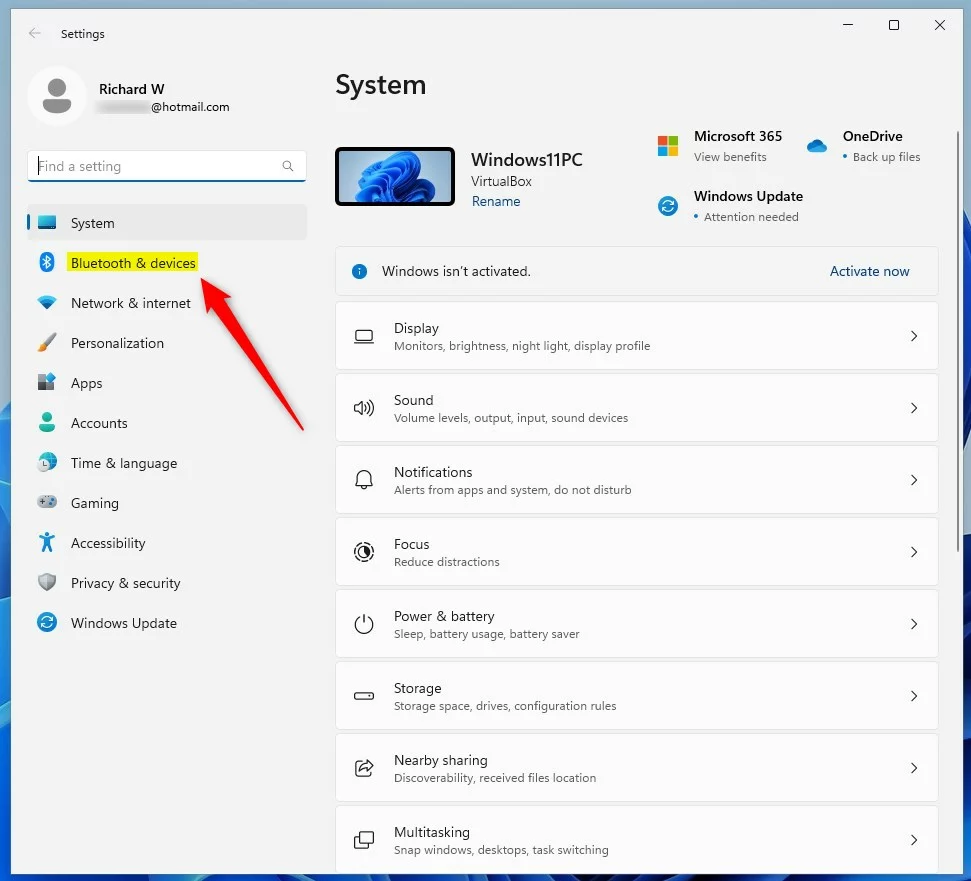
Step 2: Go to Bluetooth & Devices
In the Settings window, click Bluetooth & devices on the left side.
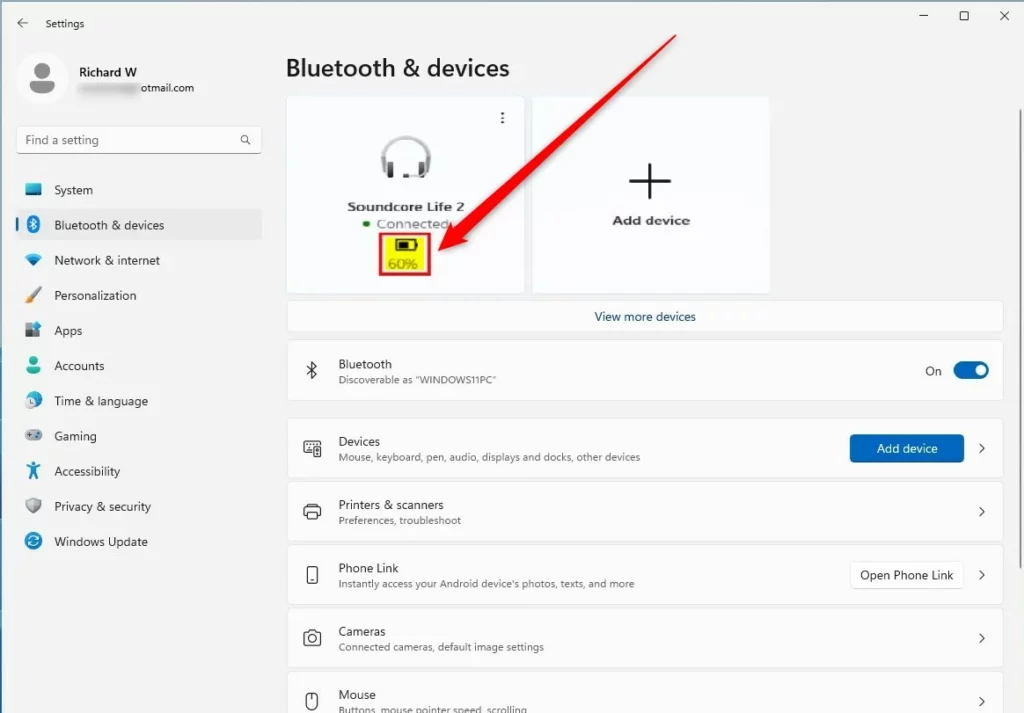
Step 3: Look for Your Device’s Battery Level
Now, look on the right side. You’ll see your connected Bluetooth devices listed here. If your device supports battery info, you will see the battery percentage right below the device name.
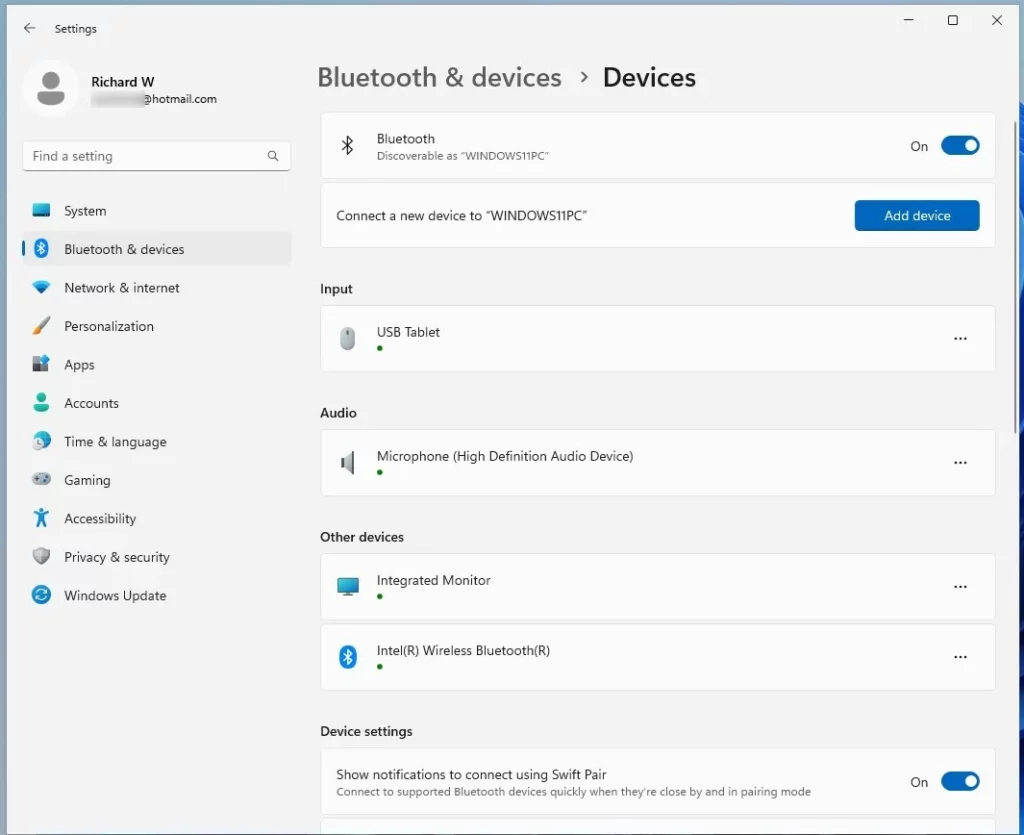
Step 4: Find More Devices (If Needed)
If you don’t see your device listed, scroll down and click View more devices to see all paired Bluetooth devices. Find your device in the list and check if the battery level is shown.
What If You Don’t See a Battery Level?
If your Bluetooth device is connected but you don’t see a battery level, it means the device does not send battery info to Windows. Not all Bluetooth devices support this feature. Your device may be older or designed without battery reporting.
Summary
- Windows 11 can show the battery level of many Bluetooth devices in the Settings app.
- Access it by going to Settings > Bluetooth & devices.
- If you don’t see your device listed, use the View more devices link to find it.
- If the battery level doesn’t show, your device might not support sending battery info to Windows.
Now you know how to keep an eye on your Bluetooth device’s battery. You’ll never get caught with a dead headset or mouse again!
Need more help with Windows 11? Check out the official Microsoft help page here: Windows 11 Support.

Leave a Reply Cancel reply